Why Is There No Sound After Downloading YouTube Video?
Downloaded a YouTube video but there is no sound? Learn the most common causes and easy fixes to restore audio on your downloaded files.
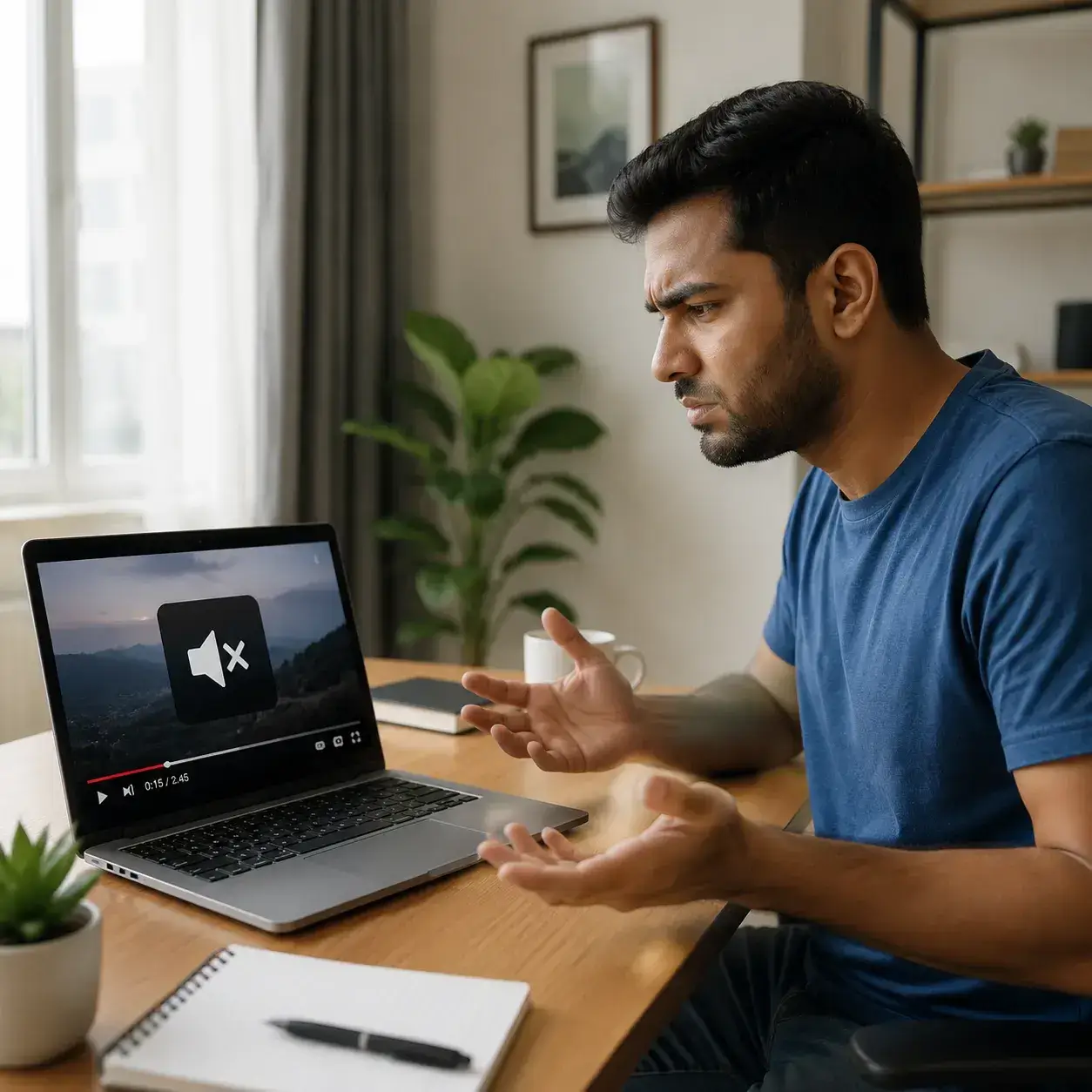
Is It the File, the Player, or the Source?
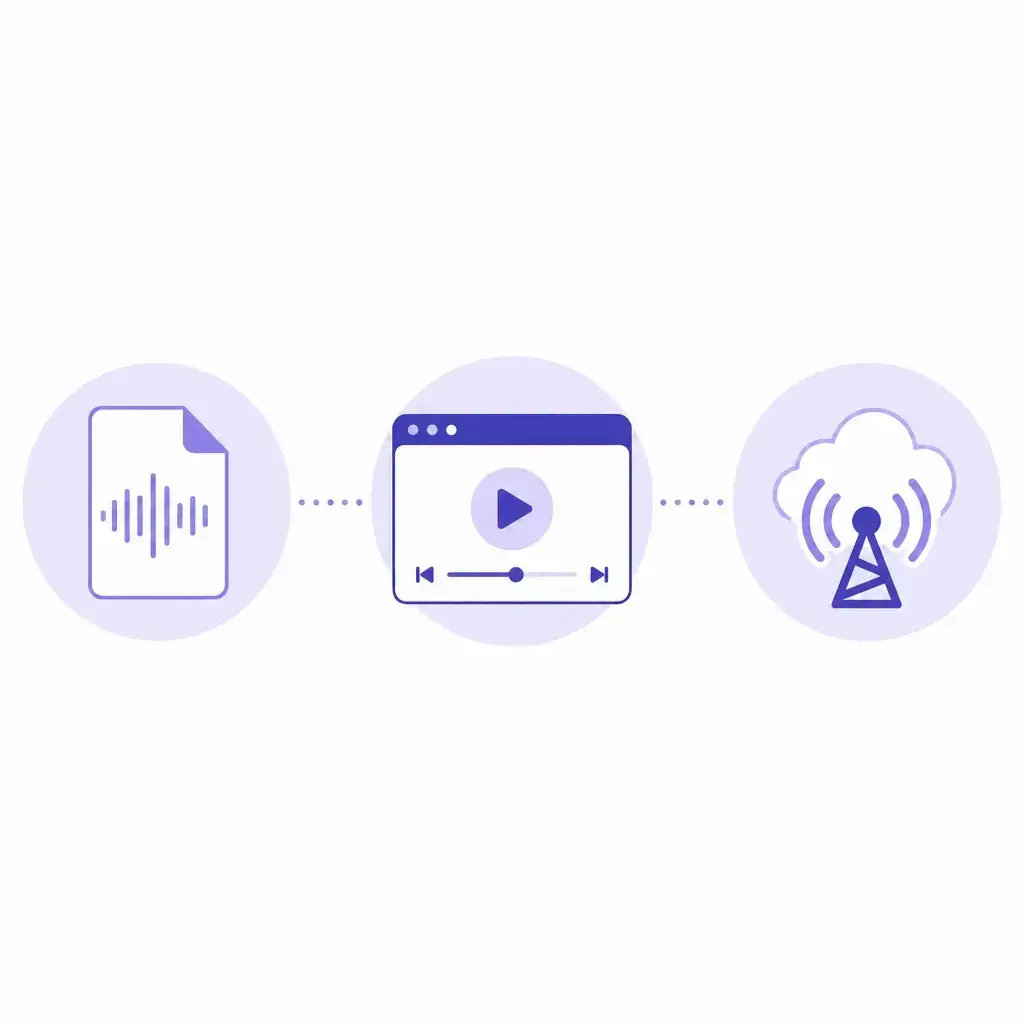
Check the File
The downloaded file may be video-only with no audio track. Verify the format you selected includes sound.
Check the Player
Your media player might not support the audio codec inside the file. Try opening it with a different player.
Check the Source
The original video may use separate streams that were not merged during the download.
Why Your Downloaded YT Video Has No Sound
The file was downloaded as a video-only stream
Many download tools separate video and audio into different streams. If you chose a video-only option, the saved file may contain just the picture with zero audio data. This is the most common reason for no sound after downloading a YT video. Before you assume the file is broken, check whether the downloader offered separate format choices and whether you selected a video track that did not include audio.
The media player does not support the audio codec
Some downloaded files use audio codecs like AAC, Opus, or Vorbis. If your device's default player cannot decode the specific codec inside the file, the video will play silently even though the audio data is present and intact. Switching to a more capable player often reveals that the file has sound after all.
Separate audio and video tracks were not merged
Higher-quality YT videos sometimes split audio and video into independent streams for delivery. If the downloader does not combine them into a single output, the saved file may end up with only the visual track and no accompanying sound. This happens more often with HD and 4K downloads where the streams are handled independently.
The download was interrupted or the file is incomplete
An unstable network connection or an early cancellation can produce a partial file where the video container looks intact but the audio stream is truncated or missing. If the file size is smaller than expected for the resolution and length, the download may not have finished properly.
How to Get the Audio Working Again
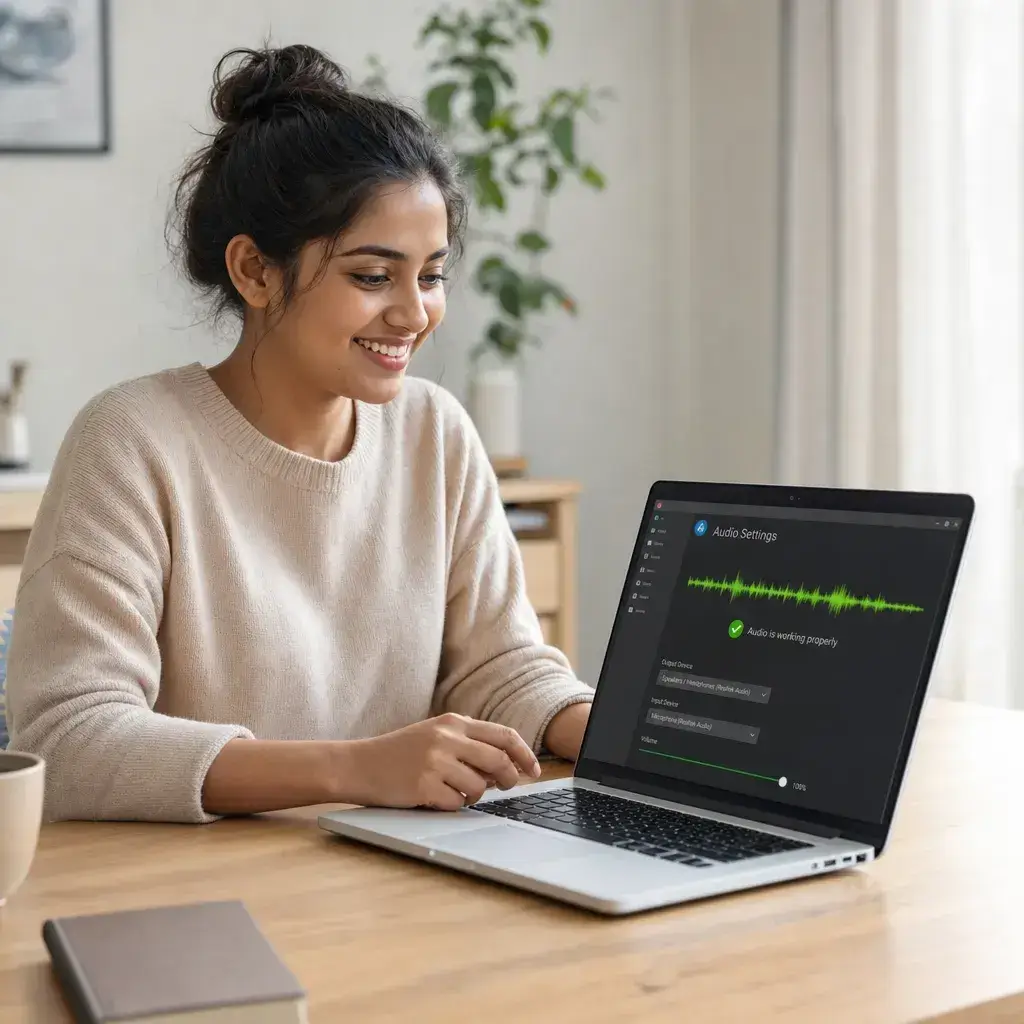
Re-download using a format that includes audio
When saving the video again, look for format options that explicitly bundle video and audio together. Choose standard MP4 with audio rather than a video-only or silent stream. This single change resolves the majority of no-sound cases because it ensures the output file contains both tracks from the start.
Open the file in a different media player
Try playing the downloaded file in VLC Media Player or another player with broad codec support. If the sound works there but not in your default player, the issue is the player's codec library, not the file itself. You can either keep using the alternative player or install the missing codec for your preferred one.
Check the file properties for an audio track
Right-click the file and view its properties or media information panel. If the audio track section shows empty or the codec field is missing, the file was saved without sound. If a codec is listed but you cannot hear it, your system may need that specific codec installed.
Use a downloader that merges audio and video automatically
Some tools handle the audio-video merge step transparently so the output always includes sound. If your current tool gives you silent files repeatedly, switching to a service that processes both streams together can eliminate the problem entirely.
Watch the quick fix before you re-download
This 30-second walkthrough covers the most common reasons a downloaded YT video has no sound, step-by-step fixes, and tips to prevent the issue from happening again.
Prevent No-Sound Issues Before They Happen
Always check the format label before downloading
Look for MP4 with audio or similar labels. Avoid any option marked as video only, silent, or no audio when you need sound.
Keep VLC Media Player installed as a fallback
VLC handles nearly every audio codec. If a file is silent in your default player, test it in VLC before assuming the download is broken.
Prefer MP4 format for reliable audio-video bundling
MP4 containers almost always include both video and audio tracks together. This format is the safest default choice for most downloads.
Re-download instead of trying to patch a silent file
If a downloaded file lacks audio, starting over with the correct format is almost always faster than attempting to extract, convert, or merge audio tracks manually.

Frequently Asked Questions About YT Video No Sound Issues
Why does my downloaded YT video have no sound even though the file size looks normal?

How can I tell if a format includes audio before I start the download?
Will switching to a different media player fix the no sound issue?
Can I add an audio track back to a video file that was saved without sound?
Why does a YT video have no sound on my phone but works on my computer?